How to turn a TikTok into a map of places
Updated June 23, 2026
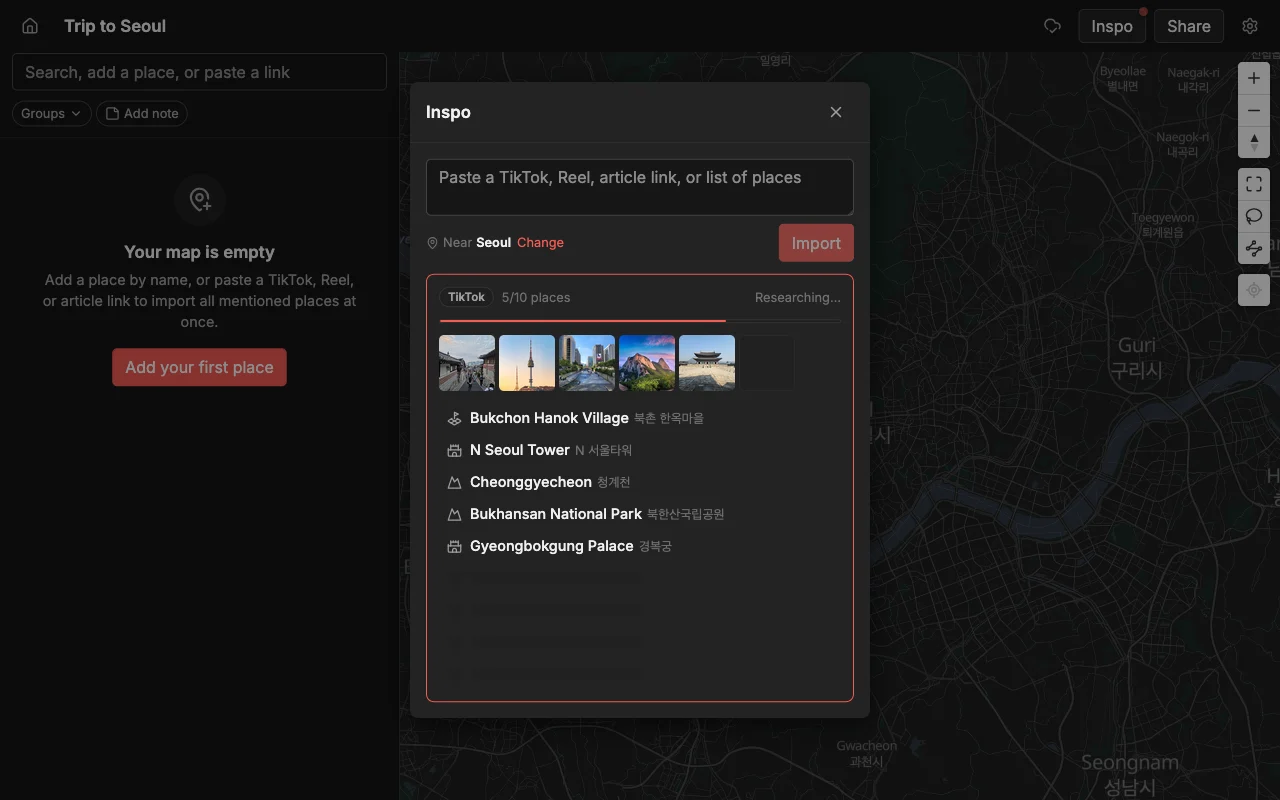
You saved a travel TikTok because the spots looked incredible, and now it is sitting in your Favorites doing nothing. The video races through six restaurants, a rooftop bar, and a hidden viewpoint in under a minute, and the only way to act on it is to rewatch, pause, squint at a caption, and type each name into a maps app one at a time. Do that across a handful of saved videos and you have spent an evening as a transcriptionist instead of planning a trip.
Places skips that chore. Paste the TikTok link and it finds every place the video names and drops a labeled pin for each one onto one shared map. Instead of a list of names you still have to look up, you get a finished map you can plan a day around, hand to a friend, or open on your phone while you are standing on a corner deciding where to eat.
This guide walks through the paste-a-link flow from start to finish, shows exactly what comes back for each spot, and covers the small things that trip people up: videos that never say a place name out loud, and clips that hop between three neighborhoods in a minute. It also shows how to turn a pile of raw pins into an organized plan you and your friends can actually use.
Turn a TikTok into a map, step by step
The whole flow is four steps and takes a few seconds. The only thing you need from TikTok is the share link, and the only thing you need from Places is an open map.
- In TikTok, tap Share on the video, then tap Copy link. You do not need to download the clip or screen-record anything.
- Open a map in Places, which is free to start on the web, iPhone, and Android, and paste the link into the add bar at the top.
- Places finds each place in the video and drops a pin for every one with a photo and a short note already filled in. On a longer clip you will see pins land a few at a time as it works through it.
- Rename, recolor, or reorder anything that needs a tweak, then share the map.
A first-timer’s instinct is to start typing names into a search box, but you do not have to. The link carries everything the app needs, so grabbing the right link matters more than anything else you do. Imports come out best when the creator actually named their spots, in the video or a pinned comment, rather than only flashing them on screen.
It also does not matter how many places are in the clip. A single-restaurant review and a “20 places to eat in Bangkok” roundup use the exact same paste. The longer video simply drops more pins, and you have not done any extra work to get them.
What Places pulls out of the video
For each spot you get a finished pin, not just a name on a list:
- The place name and exact location, dropped on the right point on the map.
- A photo, so you can recognize the place later instead of guessing from a name.
- A short description of what it is, so a spot you saved three weeks ago still makes sense.
- A color you can change to group it, like food, views, or coffee.
The location is the part that saves you the most time, and the part that is easiest to get wrong by hand. Plenty of cafes share a name across a city, and a place written in another language is easy to mistype into a completely different result. The import gets this right, so pins tend to land on the specific spot the creator meant rather than a same-named place two neighborhoods over.
If a video hops between areas, or even between cities in a “one day in each” style guide, every place still lands in its real location. That means you can open the finished map and immediately see the shape of the trip: which spots sit close enough to string together in an afternoon, and which one is off on its own and needs a plan of its own.
Why a map beats a saved video
A saved TikTok sits in a folder you forget about, and it only ever shows you one thing at a time, in the order the creator filmed it. A map shows every spot at once, in its real place, which changes what you can do with it:
- You can see which spots cluster together and plan a route around them, instead of zig-zagging across town.
- You can catch the one that is a 40-minute detour before you build a whole afternoon around it.
- You can combine spots from several videos, and several friends, into a single plan.
The difference shows up the moment you are actually on the trip. A video makes you remember which clip had that noodle place and then scrub to find its name. A map just shows a pin near you, with its photo and your note, so you can decide in a second. Planning stops being homework and starts being a glance at where you already are.
Combine videos, creators, and friends onto one map
Most trips are not built from one perfect video. You save a food roundup from one creator, a “hidden gems” clip from another, and a slow neighborhood walk from a third, and the good stuff is scattered across all of them. Paste each link into the same map and the pins pile up together, so three creators’ picks end up side by side and you can finally compare them by location rather than by vibe.
The same map takes more than TikTok. Paste an Instagram Reel, a YouTube travel video, or a written article and those spots land right alongside the TikTok finds. By the time you are done, one map holds everything you have gathered from everywhere, collected onto a single view of the city instead of buried in five different apps’ saved folders.
If you are planning with other people, everyone can paste their own finds into the shared map at once. Your friend’s ramen list and your coffee list merge into the same picture, and nobody has to text screenshots back and forth or keep a running note of who suggested what.
Organize it and share with friends
Once the pins are down, the map becomes yours to shape. Sort spots into lists like Food, Coffee, and Sights, recolor them so the categories jump out, and add your own notes to each one, like “go before noon” or “cash only”. Groups and colors turn a wall of pins into something you can actually read at a glance on the day, which is the difference between a map you use and one you ignore.
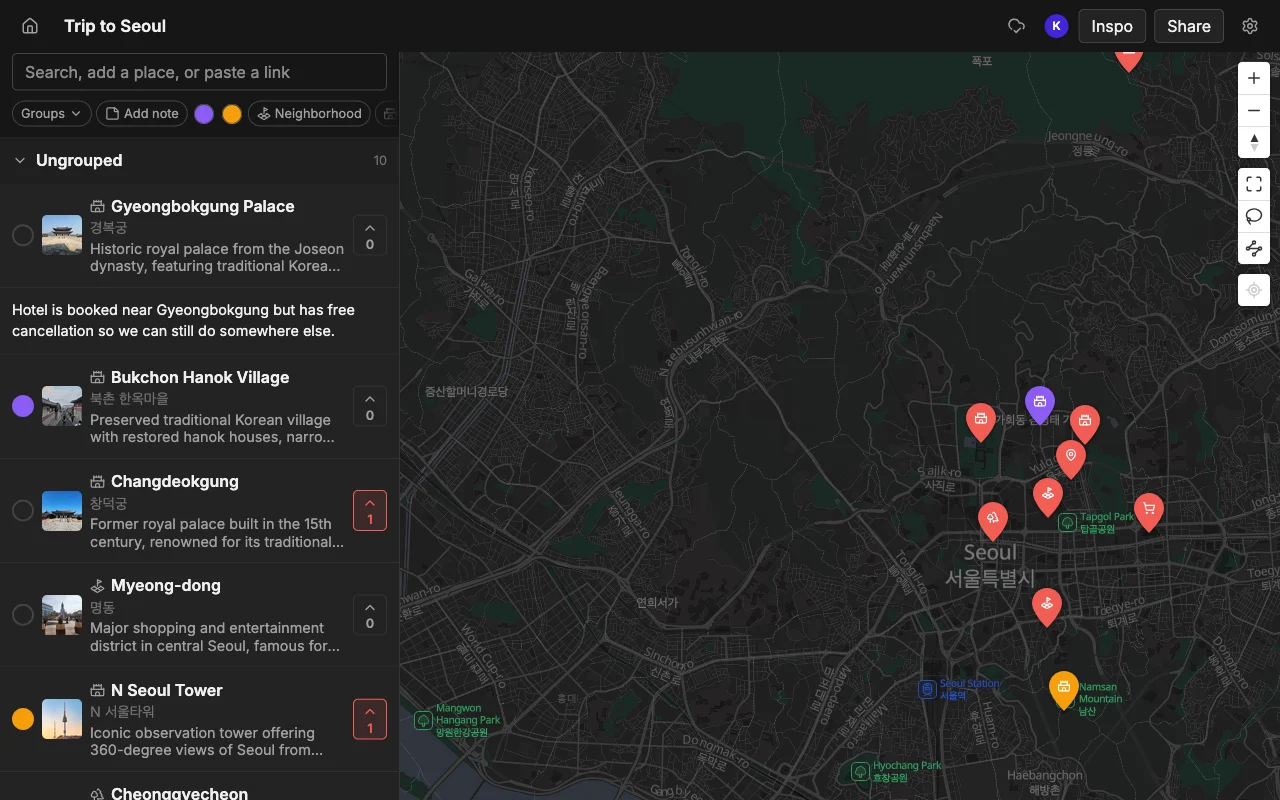
Then share it. You have two ways to do that, depending on who is on the other end. Send a read-only link and anyone can open the full map in a browser with no account and no app install, which is perfect for the friend who just wants to see the plan. Or invite people to edit so the whole group can pitch in.
When people edit together, everything stays in sync in real time. Friends add their own spots, vote on where to actually go, and leave notes on each pin, and you see it happen live rather than reconciling versions later. That is the part a folder of saved videos can never do: turn a private stash into a plan the whole group builds together.
Take the plan with you
When the map is set, it goes where you go. Open it on your phone as you walk the city and drop a pin on anything you pass that looks worth remembering, so the map keeps growing during the trip, not just before it.
For turn-by-turn directions, export the map to KML and open it in Google Maps, where you get driving or walking directions to your pins without retyping a single address. You can also export to CSV if you want the list in a spreadsheet, or to PDF for a clean printable copy to stash in a bag. The map you built from a stack of TikToks becomes the thing you actually navigate by.
When it works best, and common snags
The import works best on videos that name real places: city guides, food roundups, “where to stay” clips, and neighborhood walks. Those are exactly the videos worth saving in the first place, so most of what is sitting in your Favorites is fair game.
The one thing it cannot do is invent a name that was never given. If a creator shows a gorgeous beach but never says or writes where it is, there is nothing concrete to pin, and that is on the video, not the tool. When that happens you can usually find the spot from context, like the creator’s other posts, a tagged location, or a reply in the comments, and add it by hand with a quick search, and every other place in the clip still imports fine. A good habit is to skim the finished map against the video once, so you catch the rare miss before you rely on it.
Frequently asked questions
- Does it work for any TikTok?
- It works best on videos that name real places, like city guides and food roundups. A clip that never names a single spot has nothing concrete to pin, but as long as the places are named in the video, the import handles it whether there is one or twenty.
- How do I turn a TikTok into a Google Maps list?
- Import the TikTok into Places first, then export the map to KML and open that in Google Maps. It is faster than saving each place into a list by hand, and you keep an editable, shareable copy in Places too.
- What if a place is not found?
- Occasionally a name is too vague or is only shown, never said. You can add it by hand with a quick search in a couple of seconds, and everything else the video named still imports normally.
- Do my friends need the app or an account?
- No. A read-only link opens in any browser with no account. People only need an account if you invite them to edit the map with you.
- Can I add spots from more than one video?
- Yes. Paste as many TikTok links as you like into the same map, and mix in Instagram Reels, YouTube videos, and articles too. Everything lands on one map so you can compare it all in one place.
- Is it free?
- Yes, Places is free to start, with unlimited maps, places, and collaborators, so you can import as many videos and invite as many friends as your trip needs.