How to save Instagram Reels and posts as a map
Updated June 25, 2026
Instagram is where a lot of travel ideas are born, and also where they quietly go to die. You tap the bookmark on a Reel of a Lisbon rooftop, save a carousel of Tokyo coffee shops, and screenshot a friend’s story, and it all lands in one folder next to recipes, workout clips, and outfit inspiration. None of it has a location on it, none of it is searchable, and by the time the trip finally comes around you cannot remember which of forty saves was the one everyone raved about.
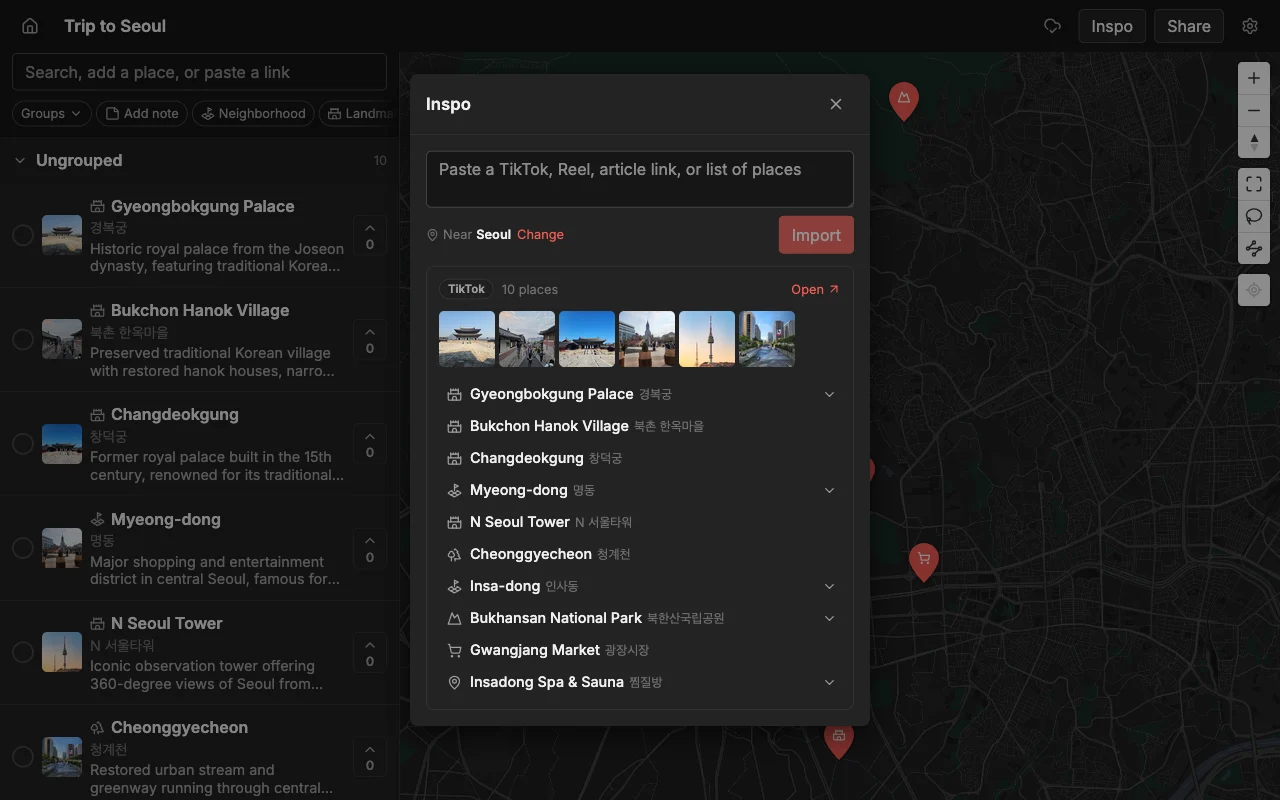
Places turns those saves into something you can actually travel with. Paste a Reel or a post link and it finds the places inside and drops a real pin for each one on a map, complete with a photo and a short note. The restaurant that was trapped inside a fifteen-second video becomes a labeled point on a map you can see, sort, and hand to a friend.
This guide covers the whole paste-a-link flow: what you get back for each spot, why a map fixes the exact problem the saved folder creates, and how to share the finished plan with the people you are traveling with. It also covers the edges most people hit, like private accounts, posts where a place is shown but never named, and pulling several saves onto one map.
Turn a Reel into a map, step by step
The flow is short. You copy one link out of Instagram and paste it into one map, and the pins appear on their own.
- On the Reel or post, tap Share (the paper-plane icon), then tap Copy link. A screenshot will not work here; the import needs the actual link, not a picture of it.
- Open a map in Places, free to start on the web, iPhone, and Android, and paste the link into the add bar at the top.
- Places finds each place in it and drops a pin with a photo and a short note already filled in.
- Reorder the pins, color them, and share the map.
It works for Reels and for many regular grid posts, including carousels that list several spots across their slides. Posts where the creator actually named their picks, like the classic “my 8 favorite spots in Mexico City” roundup, import the most cleanly. Grab the link from the post itself rather than from a story reshare, and you will get the fullest set of pins.
What you get for each spot
Every place comes back as a finished pin, not a name you still have to research:
- The place name and its real location, dropped on the correct point on the map.
- A photo, so a spot you saved a month ago is instantly recognizable.
- A short description of what it is and why it might be worth going.
- A color you can set to sort it, like food, coffee, or views.
The location is where the import earns its keep. Instagram posts are full of places written in other languages, spots that share a name with a chain across town, and neighborhoods you have never heard of. Typing those into a search box by hand is exactly where a place ends up pinned in the wrong country. The import lands each pin on the specific spot the post meant, so you are not left double-checking every result.
Get out of the saved-folder graveyard
The reason saved Reels almost never become an actual trip is simple: they are unsearchable and they have no location. A map fixes both problems at once, and that is the whole point.
- Every spot shows where it actually is, so you can see what is close to what and stop guessing at distances.
- You can group saves into lists like Food, Coffee, and Views, so the map reads clearly instead of being a wall of identical pins.
- You can combine saves from Instagram, TikTok, and articles onto one map, so your ideas stop living in five separate apps.
Put differently, the saved folder is a pile and the map is a plan. The folder answers “what did I like?” in a random order set by whenever you happened to tap the bookmark. The map answers the question you actually have on the trip, which is “what is good near me right now, and what did I say about it?” That shift, from a stack of clips to a picture of the city, is what makes the saves finally useful.
Mix Instagram with everything else
A trip is rarely built from one perfect post. You save a Reel from a food account, a carousel from a friend, and a couple of clips from creators who have never met each other, and the good stuff is spread across all of them. Paste each link into the same map and every spot collects in one place, so you can compare picks from five different posts on the map instead of flipping between five saved posts trying to hold them all in your head.
And it is not only Instagram. The same map takes a TikTok, a YouTube travel video, or a written article, so wherever a spot came from, it lands next to everything else you have gathered. One map ends up holding the whole trip, collected onto a single view of the city, instead of the same restaurant scattered across three different apps’ saved folders.
Share it with friends
Once the pins are down, sharing is the payoff. Send a read-only link and anyone can open the full map in a browser with no account and no download, which is ideal for the friend who just wants to see where you are all going. Or invite people to edit so the whole group builds the plan together.
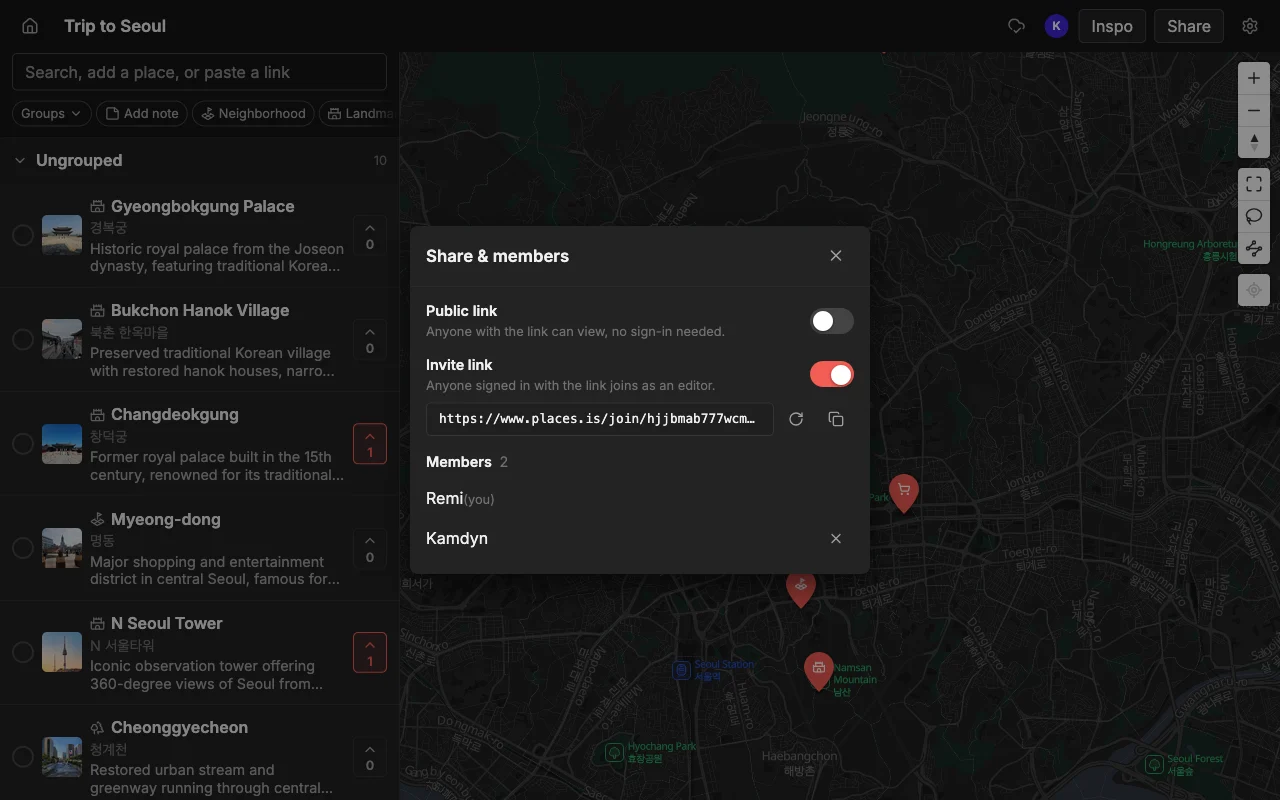
When you edit together, changes sync live. Everyone can add their own finds, vote on which spots make the cut, and leave notes on each pin, and it all updates in real time rather than in a thread of screenshots and “wait, which list is current?” messages. That shared, live map is the thing a saved folder can never become on its own, because a folder is always just one person’s private pile.
Take it on the trip and get directions
When the plan is set, the map travels with you. Open it on your phone as you go, and drop a pin on anything you walk past that is worth remembering, so the map keeps filling in during the trip instead of freezing the day you left home.
For directions, export the map to KML and open it in Google Maps to get turn-by-turn routing to your pins. If you would rather have the list in another form, you can export to CSV for a spreadsheet or to PDF for a clean printable copy. The Reels you bookmarked months ago end up as the map you actually navigate by, without you retyping a single address along the way.
Frequently asked questions
- Does it work on private accounts?
- Places can only import posts you can reach with a public share link. If a post is on a private account you do not follow, there is no link to share, so those cannot be imported.
- What if a place is only shown, not named?
- If a spot is only appears on screen and is never named in the Reel or post, it may not be found automatically. You can add it by hand with a quick search, and every place that was named still imports normally.
- Can I import a whole saved collection at once?
- You import posts by their link, one at a time, and the map builds up as you paste each one. It is quick, and it means you can watch the map fill in and skip any save you have changed your mind about.
- How do I turn an Instagram Reel into a Google Maps list?
- Import the Reel into Places, then export the map to KML and open it in Google Maps. You get the places into Google Maps without saving each one by hand, and you keep an editable copy in Places to share and plan around.
- Do my friends need an account to see the map?
- No. A read-only link opens in any browser for anyone. An account is only needed for people you invite to edit the map with you.
- Is it free?
- Yes. Places is free to start, with unlimited maps, places, and collaborators, so you can import as many posts and invite as many friends as your trip needs.